What is it?
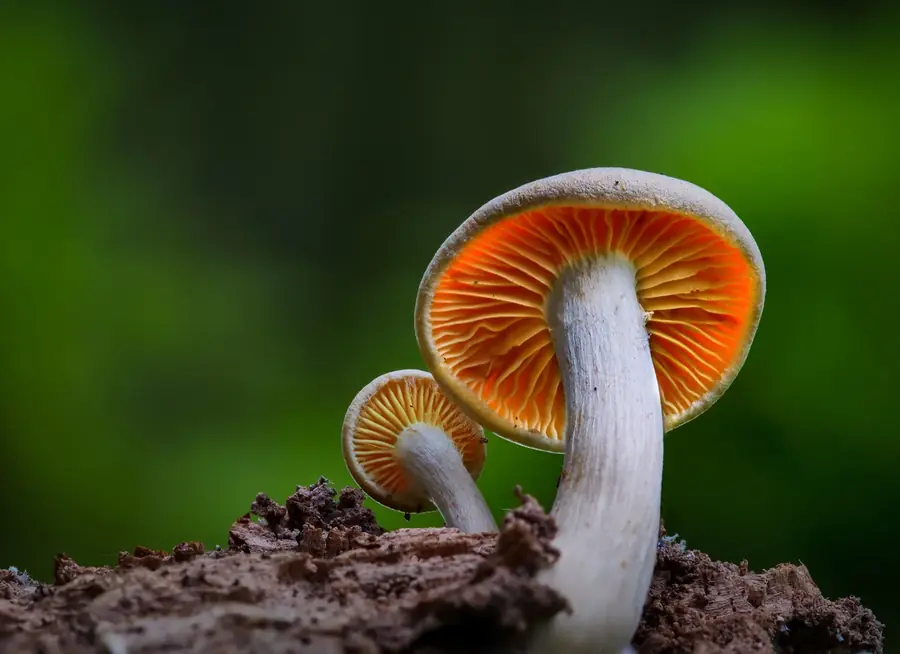
Sharpen your fung-eye
Learn to recognize fungi around you. Swipe, learn and earn as you build knowledge and grow your collection.
Pick one to start:
Location
Deck size
Settings
Import a deck
Paste a code or link a friend shared.
Quiz Style
Fills the wrong answers with look-alikes that other users often mix up with the right one, so quizzes are harder and more useful. Needs an internet connection.
Hides lichens (Cladonia, Usnea, Peltigera and other lichen-forming fungi) from every list, deck, search and collection.
Photo quality
Maximum displays best but increases data usage.
Appearance
Color scheme
Forage map style
Fungarium
Fungarium
Export Progress
Copies a link with your decks, Fungarium and settings in it. Open the link, or paste it in Import a deck, to restore them.
Dev mode
shroomIQ v4.16.2
entering the danger zone
Compare
Fungarium
0 sporesHelp
Learn to recognise fungi from real photos. Pick a deck, guess the species, and watch your collection fill up. Eleven short steps cover the whole app.
shroomIQ
Welcome
Choose what to practise.
Nearby
Fungi around you
Fruiting this month
What is out right now
My deck
Pick one of your decks
Start
PlayDecksForageStatsFungarium
Step 1
Start a game
The first time, shroomIQ asks what you want to practise.
- 1Nearby builds a deck from species people have recently photographed around you. Allow your location, or type a city or zip code.
- 2Seasonal (called Fruiting this month in Decks) shows the species that are most often seen in this month of the year.
- 3My deck uses a list you made yourself.
- 4Tap Start. You can change your mind any time from the Decks tab.
shroomIQ
+
✕
i
✓
My deck · 6 cards
2
6
PlayDecksForageStatsFungarium
Step 2
Play a card
Every card is a photo with the name hidden.
- 1+ adds this species to any of your decks.
- 2✕ (or swipe left) skips the card. It comes back later.
- 3i opens the species article if you want a hint.
- 4✓ (or swipe right) means you think you know it. You then pick the name from a short list.
- 5The bar shows how many cards you have identified. Fill it to clear the deck.
shroomIQ
What is it?
Turkey Tail Trametes versicolor
Chicken of the Woods
Artist's Conk
Lion's Mane
Not quite. It was Artist's Conk. Back in the deck.
Study
Compare
Next card
PlayDecksForageStatsFungarium
Step 3
Answer and learn
One tap answers. The result shows right away.
- 1Pick the name. The style (name from photo, photo from name, or genus) is set under Settings > Quiz Style.
- 2A right answer removes the card. A wrong one puts it back in the deck and saves the pair you confused as a mix-up.
- 3Study opens the full article. Compare sets the two species side by side with a short practice drill.
Never eat a fungus based on this app. It is for education only.
shroomIQ
Decks+ New
NOW PLAYING
My deck2 of 6
SMART DECKS
Nearby
⋯Cedartown · 50 mi
Fruiting this month
⋯MY DECKS · 2Recent ▾
My deck
⋯2 of 6
Gourmet
⋯Complete
PlayDecksForageStatsFungarium
Step 4
Manage your decks
The Decks tab lists every deck you can play.
- 1+ New starts an empty deck of your own.
- 2Now playing is the active deck, with its progress. Continue (or a tap anywhere on the card) picks up where you left off. Collection on the card opens that deck's Collection.
- 3The circle on a thumbnail makes that deck active without starting a game. A green tick marks the active one.
- 4Tap a deck to play it, or tap its photo (in List view) to open its Collection. Your decks show how many cards you have identified: "2 of 6" (or "0 of 6" before you start) or Complete.
- 5Recent ▾ sorts My decks: Recent (last played first), A–Z, Progress (most identified first) or Custom, your own order. In Custom, drag a deck by its grip ⠿ to move it.
- 6⋯ opens Edit, View in Collection, View Stats (Nearby and Fruiting this month also have See on the map), and on your own decks Share Deck, Move up / Move down and Delete. Moving a deck switches the sort to Custom.
Search (under Now playing) finds any genus or species as you type; tap a result to open its Study page. Back returns here with the box cleared.
Smart decks fill themselves: Nearby, Fruiting this month, Mix-ups (your most commonly confused species) and Mastery practice (the species you've identified that have a mastery step to take today; its ⋯ menu opens the Fungarium). Decks made with Drill them from Stats are listed here too. In Mix-ups' ⋯ menu, View pairs shows the pairs you confuse.
Prefer big pictures? Tap Photo in the List | Photo switch at the top of this page: your decks become photo tiles, two to a row. Hold a tile (or tap its ⋯) for its menu.
Learn holds the Anatomy Deck: 96 drawings of mushroom parts and shapes. Name it shows one unlabeled line, Find it asks for the picture that shows a term, and Label it has you drag four terms onto four numbered lines (or tap a term, then a line). Choose the style, or leave some groups out, in its Edit page. It needs no location and works offline once opened.
shroomIQ
Edit: My deck‹ Back Play!
Add species
Search by name…
In this deck
Artist's Conk–
Fly Agaric–
Default Quiz Style
ClassicFlipGenusMixed
PlayDecksForageStatsFungarium
Step 5
Build and tune a deck
Tap a deck's name or thumbnail, or choose Edit in its ⋯ menu.
- 1Add species by name, a whole genus, or by region (location and radius).
- 2The list shows what is in the deck. Tap a photo or name to Study that species. Remove any, or rename, reset or erase the deck.
- 3Default Quiz Style, near the bottom, is the style this deck starts in. Choosing a different deck loads that deck's style.
- 4Tap Play! at the top right to play the deck you are editing.
Nearby and Fruiting this month are edited the same way: tap Change to set the place, drag the radius and cards sliders (or tap a quick pick like 25 or 100 mi), then tap Update deck. It reads Up to date when nothing has changed.
shroomIQ
3/6
My deck
50% · 3 left · Streak 4
Genera 2 of 3 · 2 to next milestone
Known 3Unknown 3
PlayDecksForageStatsFungarium
Step 6
Review your collection
A deck's Collection shows how that deck is going. Open it from the Decks tab: tap a deck's photo, choose View in Collection in its ⋯ menu, or tap Collection on the Now playing card. The ‹ Decks button at the top takes you back.
- 1Opening a Collection does not change the deck you are playing; only Play (or the circle on its thumbnail) does. The ring shows species identified, with your streak and milestones. The thin bar fills in as you find each genus.
- 2Known and Unknown split the deck. Unknown photos stay anonymous, and tapping one jumps straight to that card.
- 3Sort & filter offers Hardest first, Missed before, A–Z by genus and Group by genus. Switch between Grid and List. On Unknown, List shows each card's misses, mix-ups and streak, grouped into Gave you trouble, Getting there and Not tried yet, without names. Cards you haven't tried yet show as a strip of photos.
- 4Tap a Known photo to Study it, Compare it, or Practice it again. Tap its name to go straight to Study. The dots show right answers in a row, up to three.
shroomIQ
Artist's Conk‹ Back
Each marker is a sighting. The dashed circle is your Nearby radius.
Seasonality
JFMAMJJASOND
Overview · Identification · Usages
Turkey TailLion's Mane
PlayDecksForageStatsFungarium
Step 7
Study and compare
Open any species with Study, the i button, or a Known photo.
- 1The Back button returns you to where you came from.
- 2The map shows where people have photographed the species. Zoom and drag it. Your Nearby radius is the dashed circle.
- 3Seasonality shows the months it is usually seen, near you or worldwide.
- 4Tap a look-alike chip to open Compare. It lays the two species side by side with a quick drill: get each one right three times in a row.
Article text comes from Wikipedia. Links go to MushroomExpert and iNaturalist for more.
shroomIQ
Stats
All decks
7d30dAll
55%
Accuracy
3
In a row
8
Days
Network, calendar and accuracy trend
Amanita answers are 30% right Drill
PlayDecksForageStatsFungarium
Step 8
Track your progress
The Stats tab shows how you are doing and what to practise next.
- 1Pick All decks (the default) or one deck from the menu, and a range in the bar at the top: 7d, 30d or All time.
- 2The top card shows accuracy, cards identified, your right-in-a-row streak and days practised. The Collection network maps the species you have identified, grouped by genus, with faint spores for the rest and dashed threads between species you mixed up; tap a dot to study it. The calendar shades each day you played.
- 3Charts show accuracy over time, by quiz style and by genus. View as table gives the same numbers as text.
- 4Trouble spots list the species you miss most and the pairs you confuse. Next steps suggest what to do, such as Drill them, which makes a small deck of just those species.
Summary sits above the deck menu, and At a glance has two pie charts: how much of the collection you have identified, are learning or have not tried, and your right and wrong answers. Tap a section's heading to fold it away or open it again. Deck progress lists your decks from most to least complete, and the Fungi Forecast is at the bottom.
shroomIQ
SettingsHelp
Quiz Style
ClassicFlipGenusMixed
Shows a photo and asks for the name.
Photo quality
LowRegularMaximum
Import a deck
Deck code or link
Appearance
Erase Game
shroomIQ v4.16.2
PlayDecksForageStatsFungarium
Step 9
Make it yours
Settings holds the options that apply to every deck. Open it with the gear at the top right of the screen.
- 1Quiz Style: Classic, Flip, Genus or Mixed. A deck's own default style applies when you select it. Look-alike choices fills wrong answers with species people really mix up with the right one.
- 2Photo quality: Maximum displays best but uses more data.
- 3Import deck: paste a deck code or link a friend shared, then tap Add deck to add it to your Decks. Share your own from the (…) menu on the Decks page. Export Progress, just below, copies a link to the app with your whole game in it (decks, progress, Fungarium, spores and settings). Open the link, or paste it (or the plain code, via Copy code only) into the same Import box, on this or another device, to restore it. Restoring replaces everything there except Stats, and asks first. Set your location from the Welcome page (Nearby or Seasonal).
- 4Appearance switches between light and dark.
- 5Erase Game, at the very bottom under the line that says entering the danger zone, erases all settings, progress, earnings and mastery and starts the app fresh. Tap it once and it turns red, tap it again and a box asks you to confirm. Cancel changes nothing. The Help button at the top opens this page.
Forage map (beta) is the map under the Forage tab. The round Layers button changes what the map shows: Odds, Habitat, Temp, Rain (Past Week, Past Month or Past Year), Soil, Land cover or Off, and turns Sightings and Burn scars on or off. The key for the chosen view sits in the map; on a phone it is a slim card down the right edge, and tapping it shows the full title and any note. Days beyond a week are hatched because a forecast that far out is less certain. Settings > Forage map style picks the layout. Map Sheet: pull the sheet up from the bottom (tap the handle, or drag it) with Where (your place, the area and Refresh data) first, then your fungus and layers, Best bets and Why here?; tapping the place button at the top opens the sheet fully, on Where. On a computer it is a card beside the map. Until you choose a place, the map shows the whole US. Hunt Planner: a 60-day odds timeline replaces the slider, so you can see the best days at a glance, and Best bets are cards on the map. The map fills the screen, so one finger moves it and two fingers zoom.
Install it on your iPhone: open the site in Safari, tap Share, then Add to Home Screen. It opens full screen and works offline once it has loaded.
shroomIQ
Fungarium1,240 spores
ShopForage
Gallery score 73 · Forager
On the path
Larch Suillus · Lookalikes 2 of 3
Practice now
PlayDecksForageStatsFungarium
Step 10
Grow a Fungarium
Everything you learn earns spores, and every species you master earns its own spore print to plant in your garden.
- 1Spores: 1 for every right answer, with no daily limit, plus bonuses for each step on a mastery path, mastering a species, your daily goal (20 answers), day streaks and clearing a pair in the Mix-up Coach. The count also sits at the top left of the screen on the other tabs.
- 2The plot: plant your spore prints and watch them grow from spore to mycelium, pins, buttons and mature mushrooms. Shop sells host trees, logs and ground, water and stones. Mycorrhizal fungi need a host tree whose roots reach them; saprotrophs grow twice as fast on their log or ground; water speeds up everything in reach. A mature patch fruits again and again: tap it while it sporulates to collect 2 to 5 spores. Tap anything for its plaque, to move, store or remove it. Animals, insects and gnomes bring the garden to life: squirrels carry spores to start new patches, beetles host Cordyceps, a growing Russula hosts the Lobster mushroom, and fireflies and glowing species light the night. Below ground shows the mycelium joining each patch to its partner.
- 3Gallery score: points for each thriving species, genus, family and way of life in your garden, and for Prime prints, with titles from Spore Sprout to Grand Fungarian. Spore prints: one for each species you have mastered. Get it right again 30 or more days later and it turns Prime and shimmers. A miss only takes the shimmer away, and the 30 days start again.
- 4On the path: every species you have identified, with its five steps: Identify, Recall (2 right in Flip), Genus (1 right), Lookalikes (3 right with a lookalike among the choices) and Remember (right on 2 later days). Practice now plays the Mastery practice deck, which asks each species in the style its next step needs.
- 5More plots: + New plot opens other biomes as you master more species: Oak woodland (5), Birch and aspen (10), Meadow (15), Burn scar (25) and Desert (40, or your Desert Dwelling Fungi deck mastered). Each has its own look and comes with its own hosts already growing. The second plot costs 800 spores, the third 1,500 and each after that 2,500. Every plot keeps growing while you look at another.
- 6This week's forager challenge: one small goal each week, starting Monday. Finishing it pays 150 spores and a seasonal decoration for your garden. Time-lapse replays a plot from its first planting to now, and Share sends a picture of it with your Gallery score.
Your garden is a tilted board. Drag it to move around, pinch (or use + and −) to zoom, the two turn buttons turn it a quarter turn, the locate button or a double tap puts it back. On a keyboard: arrows move, + and − zoom, Q and E turn, 0 resets. When you plant or place something, the ghost stays in the middle and you slide the garden under it; the bar says what that spot would mean, and Place here puts it down. The Side view button shows the flat picture instead; Below ground always shows the flat cut-away.
The garden keeps your local time of day, so its sky follows your own day and night. Growth adds up all the time: at full speed while the app is open and in use, half again faster while you answer cards, and at a tenth of the speed while it is idle or closed.
shroomIQ
Find Fungusbeta
Morels ▾ · Cedartown · 25 mi square
▶Today
PlayDecksForageStatsFungarium
Step 11
Go foraging
The Forage tab is the Find Fungus map: where, and when, the odds look good for morels, chanterelles and more.
- 1Pick a fungus and a place (your location, a city or a zip code) and the size of the square to forecast.
- 2The map colours each cell by habitat odds. Tap Layers to add weather, fires and more.
- 3Drag the day slider, or tap ▶ to play the forecast through time.
Nearby and Fruiting this month have a See on the map link on the Decks page that opens this tab. It is a beta: forecasts are a guide, not a promise.
Welcome page photos. Credits and licenses to be confirmed (files are in the welcome folder).
beta Find Fungus
Where
Fungus, place and layers
Fungus, place and layers
Layers
My finds
Data sources
Best bets
Why here?
Tap anywhere inside the dashed square to see why it rates the way it does.
Stats
Fungi Forecast
Decks
Search
Edit deck
Explore by location
Where
Size
Deck size
Species come from your most confused pairs first.